
Key Tools
The Key Tools tab (the second tab on the right) holds ten actions that work directly on the keys selected in Houdini. They do not use the curve in the graph.
Use a tool
Section titled “Use a tool”- Select keys in a Channel Editor or the playbar.
- Open the Key Tools tab and press a tool.
- If the tool has options, a dialog opens. Press OK to apply or Cancel to change nothing.
Every tool that changes keys:
- runs on every selected channel and reports skipped channels in the status line;
- is one Houdini undo step, named MotionAtelier: <tool>;
- is checked and verified like a commit, and fully rolled back on any failure. See Safety and undo.
Tools that move keys move each channel’s selected range (every key from its first to its last selected key) as one block. Keys inside the block never cross, and a move that would collide with a key outside the block skips that channel instead of overwriting anything. Neighbouring keys with automatic tangents are fixed at their current tangents so the motion outside the range does not change.
No keys selected? Key Tools then use the channels selected in the Channel Editor’s channel list (or the playbar’s), with all their keys. See Selection behavior.
Inspect
Section titled “Inspect”Inspect Selection
Section titled “Inspect Selection”Reports what the tools would act on, without changing anything: the selection source, the number of channels, and per channel the selected and total keys, frame range, value range and segment functions, plus [locked] or [not numeric] flags. The report appears under the buttons and can be selected and copied.
Clean Up
Section titled “Clean Up”Remove Interior Keys
Section titled “Remove Interior Keys”Deletes every key between each channel’s first and last selected key. Needs at least two selected keys per channel.
Remove Outside Keys
Section titled “Remove Outside Keys”Deletes every key before the first and after the last selected key.
Reduce Keys
Section titled “Reduce Keys”Removes keys from each channel’s selected range while keeping the curve within a value tolerance. The first and last key of the range keep their time and value.
| Option | Default | Meaning |
|---|---|---|
| Value Error | 0.8 % | Largest allowed deviation, as a percentage of the range’s value span. |
| Preserve Extrema | always on | Prominent peaks and dips are always kept. Shown for information; it cannot be turned off. |
The status line reports the reduction per channel. A channel is left unchanged when no smaller result stays within the tolerance. Reduce Keys only works on Bezier and linear segments.
Retime
Section titled “Retime”Scale Keys
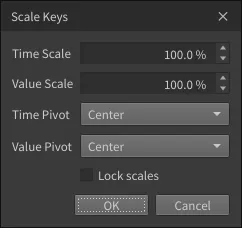
Section titled “Scale Keys”Scales each channel’s selected range in time and value.
| Option | Default | Meaning |
|---|---|---|
| Time Scale | 100 % | 100 % keeps timing; 200 % doubles the duration. A negative scale reverses time. 0 % is not allowed. |
| Value Scale | 100 % | 100 % keeps values; 0 % flattens to the value pivot. |
| Time Pivot | Center | The time that stays fixed: First Key, Center, Playhead or Last Key. See the note below. |
| Value Pivot | Center | The value that stays fixed, per channel: Minimum, Center, Zero or Maximum. |
| Lock scales | off | Keeps Value Scale equal to Time Scale. |
Reversing a range that contains value jumps is not supported.
Offset Channels
Section titled “Offset Channels”Staggers channels: the first channel stays, the second moves by one Offset, the third by two, and so on.
| Option | Default | Meaning |
|---|---|---|
| Offset | 3 f | Frames between consecutive channels. Negative values stagger the other way. |
| Order | Parameter/channel order | Or Reverse. Houdini does not report the order in which you selected channels, so channels are ordered by path. |
Shift Following Keys
Section titled “Shift Following Keys”Ripple edit: moves every unselected key after the selection by a frame Delta (default 10 f). Use it to make room after a block you lengthened, or to close a gap. A shift that would move keys onto or past the selection is refused.
Match Durations
Section titled “Match Durations”Retimes each channel’s selected range to one shared duration.
| Option | Default | Meaning |
|---|---|---|
| Target | Active | Active (the first selected channel in path order), Longest, Shortest, or Custom. |
| Anchor | Start | The point that stays fixed: Start, End or Center. |
| Custom | 30 f | The target duration in frames, used when Target is Custom. |
Snap to Playhead
Section titled “Snap to Playhead”Align Starts
Section titled “Align Starts”Shifts each channel so its first selected key lands on the playhead. Relative timing within each channel is kept.
Align Ends
Section titled “Align Ends”Shifts each channel so its last selected key lands on the playhead.
Related
Section titled “Related”- Selection behavior
- Troubleshooting: messages such as
no keys after the selection.