
Motion Stack
The Motion Stack adds effects on top of the current shape (an Ease curve or a generated shape) without changing it. Each effect is a layer you can mix, reorder, bypass and remove at any time. The result is committed as a small set of keys, never one key per frame.
- With a Spring layer (Damping 0.10)
- Base curve
Add and edit layers
Section titled “Add and edit layers”- Open the Motion Stack tab (the first tab on the right).
- Press Add Effect and choose an effect. It is added at the end of the stack.
- Expand the card and adjust its parameters. The graph shows the result live.
Each layer card has, left to right:
| Control | What it does |
|---|---|
| Expand arrow | Shows the layer’s parameters and actions. Double-clicking the card also expands it. |
| Check box | Enables or bypasses the layer. |
| Grip | Drag to reorder layers. |
| Name | The layer name. Right-click to rename. |
| Mix % | Layer strength, 0–100 %. At 0 % the layer has no effect. |
An expanded card adds the parameters and four buttons: Move Up, Move Down, Duplicate and Delete. The card’s right-click menu offers Rename, Duplicate, Reset Parameters and Delete.
A stack holds up to 16 layers. Every change is a local undo step; the scene is not changed.
How the stack is evaluated
Section titled “How the stack is evaluated”- Top to bottom. Each layer processes the output of the layer above it, so order matters: Noise followed by Gaussian Smooth is softer than the reverse.
- Mix blends a layer’s result with its input. For Contrast and Arc Bias, mix scales the effect’s strength.
- Ends are kept. Every effect keeps the start and end values of the curve, so committed boundary keys never move (Boundary: Preserve Ends on each card).
- Per-shape stacks. Each shape keeps its own stack. Switching SHAPE does not carry effects over. Recipes save the stack with the shape.
- Viewing one layer. Click a card to view the stack only up to that layer; the Base overlay shows the curve before effects. This changes only the display: Commit Keys always uses every enabled layer.
Committing effects
Section titled “Committing effects”- Contrast and Arc Bias transform the curve exactly and are committed key for key.
- All other effects produce a dense result that is fitted with a small number of Bezier keys within 0.5 % of the value range, then verified. If no such fit exists, the commit is refused (
the effect result could not be fitted with fewer keys within the tolerance …) and nothing is written. The panel has no control for this tolerance; lower the effect’s mix, amplitude or frequency and try again. See Known limitations.
Effects
Section titled “Effects”Ranges and defaults are the values shown in the panel. Each figure applies the effect, at its default settings unless stated, to the dashed base curve.
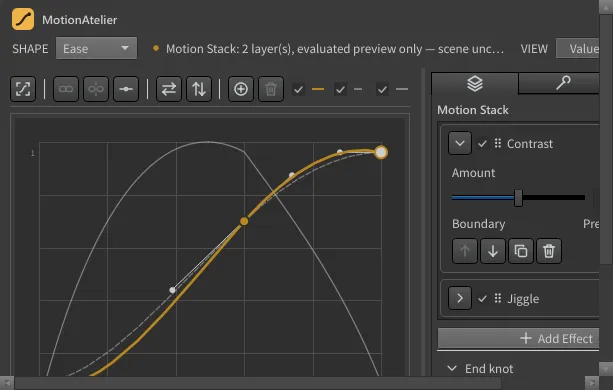
Contrast
Section titled “Contrast”Steepens or relaxes the curve’s tangents without moving its knots: positive values exaggerate the ease, negative values straighten it.
| Control | Range | Default | What it changes |
|---|---|---|---|
| Amount | -100% to 200% | 50% | -100% straightens tangents, 0% is unchanged, positive exaggerates. |
Arc Bias
Section titled “Arc Bias”Bends every rise and fall towards one of its ends, keeping peaks, dips and key times: positive values bow each arc towards its lower value, negative towards its upper value.
| Control | Range | Default | What it changes |
|---|---|---|---|
| Bias | -100% to 100% | 40% | Bends each rise and fall: positive bows it towards its lower value, negative towards its upper value. |
Adds smooth random variation, tapered to zero at both ends. Unlike the Noise shape, it works on top of any curve.
| Control | Range | Default | What it changes |
|---|---|---|---|
| Amplitude | 0.000 to 0.500 | 0.050 | Noise size relative to the curve's value range. A fraction of the curve’s value range. |
| Frequency | 1 to 64 slider to 40; type larger values | 12 | Number of noise cells across the motion. |
| Seed | 0 to 2147483647 slider to 999; type larger values | 7 | Pattern number; the same seed always gives the same noise. |
Gaussian Smooth
Section titled “Gaussian Smooth”Softens sharp corners and fast changes by averaging over a time window.
| Control | Range | Default | What it changes |
|---|---|---|---|
| Width | 0.0% to 25.0% | 5.0% | Smoothing width as a percentage of the duration. |
| Passes | 1 to 4 | 1 | How many times the smoothing is applied. |
Sharpen
Section titled “Sharpen”The opposite of smoothing: exaggerates detail of about the chosen width.
| Control | Range | Default | What it changes |
|---|---|---|---|
| Amount | 0.0% to 400.0% | 100.0% | Strength of the sharpening. |
| Width | 0.5% to 25.0% | 4.0% | Width of detail to emphasise, as a percentage of the duration. |
Jiggle
Section titled “Jiggle”Adds a bounded wobble that follows the motion, like loose secondary motion. Limit caps how far it can stray.
| Control | Range | Default | What it changes |
|---|---|---|---|
| Frequency | 0.5 to 30.0 slider to 20.0; type larger values | 8.0 | Wobble oscillations per duration. |
| Damping | 0.02 to 1.00 | 0.12 | Damping ratio of the wobble. |
| Limit | 0.01 to 1.00 | 0.15 | Largest deviation from the motion, as a fraction of its range. |
Spring
Section titled “Spring”Makes the value follow the curve like a mass on a spring: it trails, overshoots and settles. Frequency is the number of spring oscillations per duration; Damping 1 settles without overshoot.
| Control | Range | Default | What it changes |
|---|---|---|---|
| Frequency | 0.5 to 30.0 slider to 15.0; type larger values | 4.0 | Spring oscillations per duration. |
| Damping | 0.05 to 2.00 | 0.35 | Damping ratio; 1 settles without overshoot. |
Makes the value trail the curve smoothly, without overshoot. 90% Response is how long the value takes to cover 90 % of a sudden change.
| Control | Range | Default | What it changes |
|---|---|---|---|
| 90% Response | 0.0% to 115.1% | 11.5% | Time to reach 90% of a step, as a percentage of the duration. |
Starts the motion later by a share of the duration. The end value is still reached at the last key.
| Control | Range | Default | What it changes |
|---|---|---|---|
| Delay | 0.0% to 50.0% | 10.0% | Delay as a percentage of the duration. |
Effect figures are plotted from MotionAtelier’s own effect code, outside Houdini. They are illustrations, not screen captures.
Related
Section titled “Related”- Houdini integration: how effects are committed.
- Recipes: save a shape together with its stack.
- Controls and parameters: all ranges on one page.