
Velocity view
The velocity view plots how fast the value changes over time instead of the value itself. It is the quickest way to see an ease, a sudden stop or a speed bump.
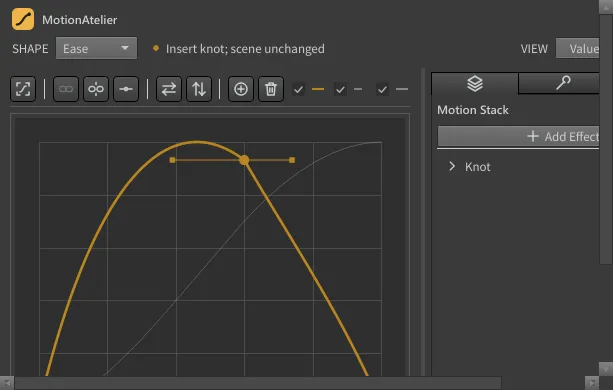
Open it
Section titled “Open it”Click VIEW ▸ Velocity in the header. VIEW ▸ Value returns to the value graph. The choice is remembered.
To see speed while editing values, check the Velocity overlay to the right of the toolbar instead, or choose Show Velocity from the right-click menu.
Edit speed and influence
Section titled “Edit speed and influence”In the velocity view, each knot of the Ease curve has two controls:
| Control | Drag vertically | Drag horizontally |
|---|---|---|
| Speed circle | Changes the speed (tangent slope) at the knot. | Moves the selected interior knots in time. |
| Influence square | Changes the speed. | Changes the influence (handle length, 0–100 % of the segment): how long the speed is held before the curve turns. |
Selection works as in the value graph: click, Shift+click and marquee. A drag edits every selected knot. On a smooth knot both sides change together; on a broken knot each side is edited separately. Each completed drag is one local undo step (Edit velocity).
The value graph and the velocity view edit the same curve; switch back to Value to see the result.
Generated shapes show their velocity but cannot be edited here. Use Convert to Ease first.
Reading the graph
Section titled “Reading the graph”- Zero at an end: the motion eases in or out of that key.
- A tall, narrow peak: a fast, snappy move.
- A jump: a broken knot. The speed changes instantly, as at each bounce contact.
- Below zero: the value moves backwards, as in an overshoot.
Related
Section titled “Related”- Curve editor
- Knot inspector: set slopes and influences numerically.